Plans
The Plans subtab allows Users access to add an Attendance Plan, Accrue Time, Reports, and Search directly from the Employee's Profile screen.
-
Add Attendance Plan
When selecting the Add Plan button, that pulls up the Attendance Plan lookup. This will display the available Attendance Plans for this Employee.
Note: When a plan is selected it will add the plan for the employee and preload the Plan, ID, and Type from the Attendance Plans Maintenance. Additionally, the fields of Start Date, Seniority Date, and Carryover. -
Start Date
The Start Date is based on the selection in the Attendance Plans Maintenance and will default to the respective Employee value. -
Seniority Date
The Seniority Date is populated based on the ‘Seniority Calculation Date’ selected from the Attendance Plans Maintenance respective to the Employee’s Job History. -
Carryover
The Carryover field allows the configuration of a starting Carryover value for the Plan. -
General
After saving the Attendance Plan onto the Employee record, the user is navigated back to the General Tab of the Edit Attendance Plan screen. This screen allows users to modify the Start Date, Seniority Date, and Eligibility Effective date and displays the Attendance Plan Details (Plan Year, Carryover, Accrued, Taken/Adjustment, Available, and Last Accrued date). The ‘Amount Capped by Maximum Available’ checkbox on this screen auto-populates to enable once the plan max is hit and is a read-only field. -
Suspension Periods
The next tab controls Suspension Periods. If the Attendance Plan does not allow an Employee to accrue benefits while on a leave of absence, for example, suspend accruals when an Employee is placed on a leave of absence. Once a suspension is put in place, time will not accrue during the leave of absence. When suspending accruals for an Attendance Plan, Time Off accrues the plan up to the start date of the leave. Enter a Start and End date and any relevant notes for the suspension period. Depending on when the Suspension Period starts or ends, the full lump sum amount could accrue, and will need to be manually adjusted.
Note: If a plan is impacted by one or more Accrual Suspension periods an icon will display to the right of the Available column in the Employee Profile with the below pictured tooltip.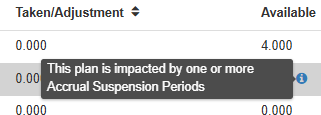
Users can still have ‘Taken’ time but won’t earn any time during a suspension. The ‘Day of’ and the ‘Day of the end’ of the suspension are not earned as these are part of the suspension and such wouldn’t be included in accrual calculation. An Adjustment transaction can be utilized to mitigate any discrepancies within the Attendance Plan details.
The ability to Accrue, Expire, and reactivate the Attendance Plan is tied to the Attendance Plans, and Transaction Securables are tied to at least having read-write access. The Forecast functionality will require these Securables to be at Read-only access or above. -
Plans Toolbar
Under the 'Plans' subtab, Users can also Delete a Plan from an employee, Accrue Time, Expire a Plan, Forecast, and run attendance-related reports by clicking into an Attendance Plan. Each of the reports is controlled by the following Securables in the Group Security Maintenance: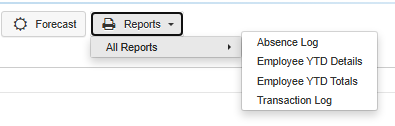
Absence Log
The Attendance Absence Log report is controlled by the Attendance – Task – Attendance Absence Log Report’ Securable.Employee YTD Details
Attendance Employee YTD Details report is controlled by the ‘Attendance – Task – Attendance Employee YTD Details Report’ Securable.Employee YTD Totals
The Attendance Employee YTD Totals report is controlled by the 'Attendance – Task – Attendance Employee YTD Totals Report’ Securable.Transaction Log
The Attendance Transaction Log report is controlled by the ‘Attendance – Task – Attendance Transaction Log Report’ Securable.
Note: These reports are available for review from the Employee Profiles in the Reports dropdown menu under the Attendance tab as well as the Attendance navigation menu Reports section.
-
Attendance Plan Details
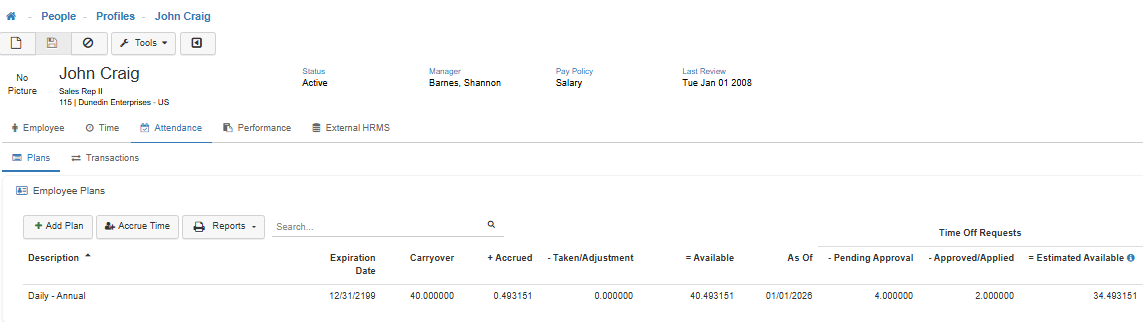
The Carryover, Accrued, Taken, and Available values from the Attendance Plan Details are tied to the accrual actions for the Attendance Plans. The Pending Approval, Approved/Applied, and Estimated Available values are tied to the Employee's Time Off Requests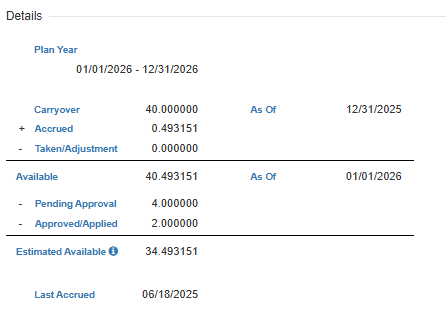
-
Plan Year
Displays the Plan’s start and end date. This is controlled based on the Company’s Fiscal Year-related configuration in the Employer Maintenance and Attendance Module Options Maintenance. -
Carryover
The total amount of time (hours or days) carried over from the previous year (the available balance on the day of the year-end close). The effective date for carrying over the unused time from previous years or from the close date that resulted in the Carryover. The system updates this date anytime the Close Accrual Year process takes place. -
As Of
The ‘As of’ date that the Carryover amount was last updated as part of Plan Year Close. -
Accrued
The total time accrued (hours or days) for the employee in this Attendance Plan. -
Taken/Adjustment
Displays the total number of hours or days the Employee has taken for this plan in the current accrual year. This is based on all absence transactions that have a Pay Code associated with this plan. -
Available
Time Available = ‘Carryover’ time + 'Accrued' time - 'Taken' time. -
As Of
Based on the Accrual Actions, the ‘As Of’ date displays the date the Available amount was last updated. -
- Pending Approval
Displays the total number of hours requested on a Time Off Request for this plan (and current Plan Year) that have been submitted by the Employee but have not yet been Approved by their Manager. -
- Approved/Applied
Displays the total number of hours the Employee requested on a Time Off Request for this plan (and current Plan Year) that have been Approved by their Manager but have not yet been exported to your external HRMS system. -
Estimated Available
Displays the potential available time if all Time Off Requests are approved and used within the Plan Year. The total shown here is calculated by 'Available - Pending Approval - Approved/Applied = Estimated Available'. -
Last Accrued
The displayed date is the date of the last accrual action.
-
-
Forecast
The Forecast functionality allows you to glimpse projected values from the Attendance Plan Details (Carryover, Accrued, Taken, and Available) to make it easier to make informed decisions when requesting and approving leave.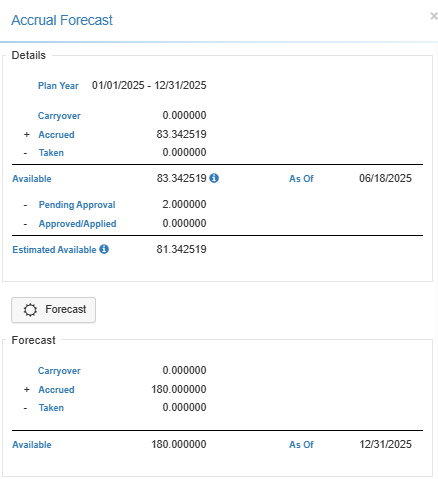
Forecast Availability
This ability to ‘Forecast’ an Employee’s accruals for an individual plan through a specific date is available both from the Employee Plans section of an Employee’s profile as well as from the Time Off Request area of LightWork. This would allow both Employees and Managers access to this helpful functionality. Forecast functionality will take into consideration any accrual Suspension Periods assigned to that Employee for that Plan Year and deduct accordingly. The Suspension Period indicator will display if Suspension Periods are impacting that plan year.Benefits of Using Forecast
Employees can plan their time off/vacation in advance without calculating their accruals manually to see if they will have enough time for the vacation and managers can confirm that the request that they’re approving complies with any organization rules regarding time off.
Note: LightWork can also be configured to warn users that the time off request being handled for submission or approval is for more time than is currently available. This can be configured in the Time Off Request Configuration Maintenance using the ‘Allow Requests When Time Off Not Available’ field.Running a Forecast
To run an accrual forecast, navigate into the Employee Plans section of the Employee Profile or click into a new or existing Time Off Request and select the plan you’d like to forecast for. Once inside the plan, you’d select the Forecast Button and enter the Process Through date you’d like to accrue through.
-
Accrue An Attendance Plan (For a Single Employee)
-
Attendance Plan
On the Employee’s Attendance > Plans card of the Employee Profile, select the Accrue Time button from the Employee's Attendance > Plans card to accrue time for all the assigned Attendance Plans for the Employee, or select an individual plan to complete the accrual for that single plan. -
Accrue Time
Selecting the Accrue Time button from the Attendance > Plans card will then prompt the User to select the Process Through date to proceed with accruals for all the plans assigned to the Employee.-
If the Process Through Date selected is within the same Plan Year, Users will receive the Accrual Insights screen which will display the processed accruals (Plan, Plan ID, Employee Name, Employee ID, Company ID, and Company) and will drop the User back on the Attendance Plan list with the updated accrual values listed.
-
If the Process Through Date selected crosses the Plan Year End Date, Users will be prompted to select an Accrual Action. The options for these Accrual Actions are ‘Accrue Only’, ‘Accrue & Close Plan Year’, and ‘Accrue & Close Plan Year, Accrue Through Chosen Date’. Once the action is selected the Accrual Action that fits the desired course, select the Run Accruals button. Confirm to proceed with selections and process through date. A LightWork Database backup is recommended before proceeding with any Plan Year Close. The Accrual Insights then displays the processed accruals.
-
-
-
Process Accruals - Bulk Process
Navigate to the Process Accruals screen by selecting the Attendance Navigation Menu Option and selecting Process Accruals. There are four tabs to allow for selections for who would be included in the bulk accrual process.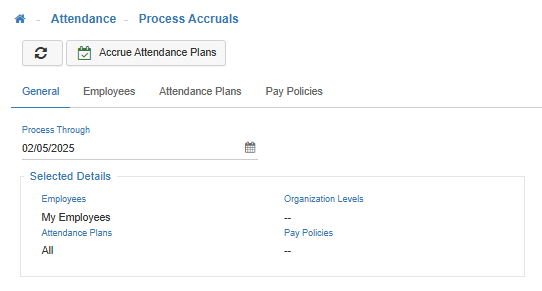
-
General Tab
The General tab allows for the selection of the Process Through date. The General tab also displays the Selected Details summary section which displays what has been selected on each of the tabs (General, Employees, Attendance Plans, and Pay Policies). -
Employees Tab
The Employees tab allows for selection between My Employees (all Employees the user has access to in LightWork through the Employee Access settings in the User Security), Specific Employee, and Selected Company/Organization Levels -
Attendance Plans Tab
The Attendance Plan tab allows for Attendance Plan selection by moving a specific Attendance Plan from the Available column to the Assigned column. You can move more than one Attendance Plan from Available to Assigned to process the Accrual on more than one plan.
Note: The system defaults the Accrual process to all Attendance Plans in the Available column. If no Attendance Plans are moved from Available to Assigned, and you select Accrue Attendance Plans all plans within the Available column will accrue time. -
Pay Policies Tab
The Pay Policy tab allows for Pay Policy selection by moving a specific Pay Policy from the Available column to the Assigned column. You can move more than one Pay Policy from Available to Assigned to process the Accrual for more than one Pay Policy.
Note: The system defaults the Accrual Process to all Pay Policies in the Available column. If no Pay Policies are moved from Available to Assigned, and you select Accrue Attendance Plans all Pay Policies within the Available column will accrue time. -
Accrue Attendance Plans
Once the desired details have been selected, users can select the Accrue Attendance Plans button and confirm to proceed. The Accrual Insights screen will then display the Employees and Plan where further action was needed as well as the ones which was successfully processed. The options for these Accrual Actions are ‘Accrue Only’, ‘Accrue & Close Plan Year’, and ‘Accrue & Close Plan Year, Accrue Through Chosen Date’.
-
-
Accrual Example Scenario
Let’s say that based on their seniority, an Employee should be receiving 160 hours for the year (accrued daily). This means that for 2024, each day they accrue 0.437158 hours (when using 6 decimal places of precision in the Module Options Maintenance). In 2024, there are 366 days, meaning that 366 is multiplied by 0.437158 which equals 159.999828 hours. For precision, 159.999828 is not the same as getting 160.000000 hours. So, LightWork Attendance adapts, and when generating the accrual transaction/amount that includes the last day of the plan year, corrects for this and adds .000172 into the 'Earned/Accrued' Transaction, thus correctly giving the Employee 160 hours. -
Lump Sum - Weekly Scenario
When an Attendance Plan is configured to accrue a Lump Sum on a weekly basis and an Employee starts their employment in the middle of a weekly accrual, the first accrual will not take place until the second week. If the accrual were to take place within the first week, the last week of the current plan year and first week of the next plan year will not accrue time.